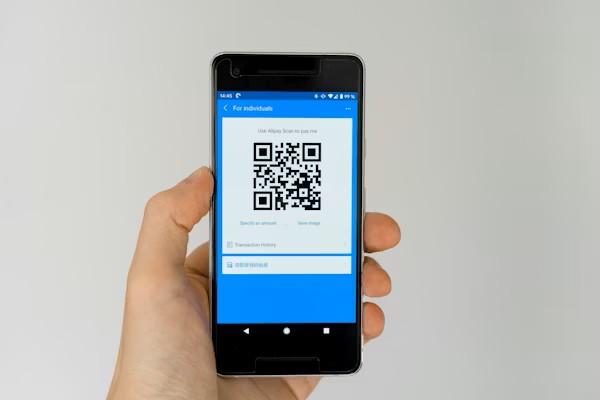
You have probably seen them everywhere — on restaurant tables, bus stops, product packaging, business cards, and social media posts. That small black-and-white square with the strange pattern inside. You point your phone camera at it and suddenly a website opens, a menu appears, or a video starts playing.
That is a QR code. And while they might look complicated, how they work is actually very simple once someone explains it clearly. Even better — you can create your own QR code completely free in about 30 seconds, no technical knowledge required.
This guide explains everything you need to know about QR codes in plain, easy language. By the end of this article you will understand exactly what a QR code is, how your phone reads it, what you can put inside one, how to make one free, and the best ways to use one for your business, blog, or social media.
What Is a QR Code?
QR stands for Quick Response. A QR code is a type of barcode — but instead of the simple straight lines you see on food packaging in a supermarket, a QR code is a square pattern made up of small black and white squares arranged in a grid.
The big difference between a regular barcode and a QR code is how much information they can hold. A regular barcode can only hold about 20 numbers — enough for a product price or stock number. A QR code can hold up to 7,089 numbers, or about 4,296 letters and characters. That is enough space to store a full website address, a phone number, a Wi-Fi password, a business card, a short paragraph of text, or even a small poem.
QR codes were invented in 1994 by a Japanese company called Denso Wave. They were originally created to track car parts moving through factories — workers could scan them quickly with a handheld reader to identify parts without typing anything. The "Quick Response" name comes from how fast they can be scanned compared to typing information manually.
For most of us in 2026, QR codes are something we use with our smartphones every day — scanning menus, making payments, connecting to Wi-Fi, and visiting websites without typing anything.
How Does a QR Code Store Information?
This is the part that most people find interesting once they understand it. The information inside a QR code is not stored as visible text — it is encoded into the pattern of black and white squares.
Think of it like Morse code. In Morse code, dots and dashes represent letters and numbers. In a QR code, black squares and white squares (spaces) represent data in a similar way. Each combination of black and white squares in the grid corresponds to a specific piece of information.
The information is laid out in a very specific arrangement. Different areas of the QR code grid serve different purposes — some areas store the actual data, some areas help the scanner find and orient the code, and some areas contain backup copies of the data in case part of the code gets damaged or covered.
When you create a QR code for a URL like https://app-tool.vercel.app, a QR code generator converts those letters and symbols into a binary pattern — a series of 1s and 0s. Then it arranges those 1s and 0s as black and white squares in the grid. The resulting pattern is your QR code.
The Parts of a QR Code — What Each Area Does
A QR code is not just a random pattern. It has specific zones that each serve a purpose. Here is what each part of a QR code does:
Position Markers
The three large squares in three corners of the code. These tell your phone where the code is and how to orient it. Without them, your phone could not find the code in the camera view.
Alignment Pattern
A smaller square near the bottom-right corner. It helps your phone read the code correctly even if the surface is curved — like a bottle or a can.
Timing Pattern
Alternating black and white lines between the position markers. These define the grid spacing and help the scanner count how many squares are in each row and column.
Data Modules
The main body of the code filled with small black and white squares. This is where your actual information — website URL, text, phone number — is stored as a binary pattern.
Error Correction
Backup copies of the data distributed through the code. If part of your QR code is damaged, torn, or covered by a sticker, your phone can still read it because of this built-in backup system.
Quiet Zone
The white border around the whole code. This empty space separates the code from surrounding text or images, telling the scanner where the code starts and ends.
How Does Your Phone Read a QR Code?
When you point your phone camera at a QR code, something quite clever happens in under a second. Here is the whole process broken down into simple steps:
Camera captures the image
Your phone's camera takes a photo of whatever you are pointing it at. It is continuously analyzing the image it sees, looking for the specific three-corner pattern that marks a QR code.
Phone finds the three position markers
The QR reader software in your phone identifies the three large squares in the corners of the code. This tells it exactly where the code is in the image and which way it is oriented — even if the code is tilted or partially at an angle.
Phone maps out the grid
Using the position markers and timing patterns, the phone maps a precise grid over all the small squares in the code. It identifies each cell in the grid as either black (1) or white (0).
Error correction checks for damage
The phone checks if any part of the code is damaged or unreadable. If so, it uses the built-in error correction data to fill in the gaps and reconstruct the full data. Up to 30% of a QR code can be missing or damaged and it will still work.
Data is decoded into readable text
The binary pattern of black and white squares is translated back into the original text — a URL, phone number, Wi-Fi password, or whatever information was encoded. This all takes under one second.
Phone shows you the result
A notification appears on your screen with the decoded information. If it is a URL, you can tap to open it in your browser. If it is a phone number, you can tap to call. If it is a Wi-Fi password, your phone connects automatically.
What Can You Put Inside a QR Code?
Most people think QR codes can only hold website links. But they can actually store many different types of information. Here is a full list of everything you can encode into a QR code:
| Data Type | What Happens When Scanned | Common Use Case |
|---|---|---|
| Website URL | Browser opens the link automatically | Business cards, posters, menus, packaging |
| Plain Text | Text appears on screen | Short messages, instructions, event details |
| Phone Number | Phone app opens ready to call | Business contact cards, customer service |
| Email Address | Email app opens with address pre-filled | Contact forms, business cards |
| SMS Message | Text message app opens with number and message pre-filled | Promotions, customer opt-ins |
| Wi-Fi Credentials | Phone connects to the Wi-Fi network automatically | Cafes, hotels, offices, events |
| Location / Map | Maps app opens showing the location | Event venues, shop addresses |
| vCard (Contact Info) | Phone offers to save the contact | Business networking, trade shows |
| Social Media Profile | Opens your Instagram, Pinterest, or LinkedIn profile | Promotional materials, social media growth |
| App Store Link | Opens app store page for a specific app | App marketing and downloads |
| PDF or Document | Opens or downloads the document | Menus, catalogues, instruction manuals |
| YouTube Video | Opens the video in YouTube | Product demos, tutorials, promotions |
Static vs Dynamic QR Codes — What Is the Difference?
There are two types of QR codes and it is important to understand the difference before you create one:
Static QR Codes
A static QR code has the information permanently encoded into the pattern. Whatever URL or text you put in when you created it stays there forever. You cannot change it later.
Advantages: Free to create and use, works forever with no subscription, no servers involved — the data is directly in the code itself.
Disadvantages: If you want to change the destination URL later, you have to create a brand new QR code and reprint all your materials. You also cannot track how many times the code has been scanned.
Dynamic QR Codes
A dynamic QR code encodes a short redirect URL. When someone scans it, they are sent to a server which then redirects them to the real destination. You can change the destination URL at any time — without changing the code itself.
Advantages: You can update the destination URL anytime, you can track scan statistics (how many scans, when, where, what device), much better for marketing campaigns.
Disadvantages: Usually requires a paid subscription service. If the service goes offline, your QR codes stop working.
How to Create a QR Code for Free — Step by Step
Creating a QR code with Toolkit Pro is completely free and takes about 30 seconds. Here is exactly how to do it:
Open the QR Code Generator
Go to app-tool.vercel.app and scroll to the QR Code Generator section. No sign-up, no account needed.
Type or paste your URL
Enter the website address, text, or information you want to encode. Make sure to include the full URL including https:// at the start. For example: https://app-tool.vercel.app
Click Generate
Your QR code appears instantly on screen. It uses high error correction so it is scannable even when printed small or at an angle.
Test it before using it
Before printing or sharing your QR code, always test it first. Point your phone camera at the code on screen and confirm it takes you to the right place.
Download as PNG
Click the Download button to save your QR code as a high-quality PNG file. This file can be used in print materials, websites, presentations, and social media posts.
The Best Ways to Use QR Codes in 2026
QR codes have become one of the most versatile tools for creators, small businesses, and professionals. Here are the most effective ways people are using them right now:
Business Cards
Add a QR code to your business card that links to your website, portfolio, or LinkedIn profile. When someone scans it, they go straight to your online presence — no typing required.
Pinterest Profile
Create a QR code for your Pinterest profile URL. Include it in your Instagram bio, email signature, or printed materials to grow your Pinterest following.
Restaurant Menus
Replace printed menus with a QR code linking to a digital menu. Easy to update, no reprinting costs, and customers can view it on their own phone.
Product Packaging
Add a QR code to your product packaging that links to a tutorial video, warranty registration, or your online store. Turns physical products into digital touchpoints.
Wi-Fi Sharing
Create a QR code containing your Wi-Fi network name and password. Guests scan it and connect automatically — no more spelling out long passwords.
Marketing Flyers
Add a QR code to any printed marketing material — flyers, posters, banners — linking to your website, event registration, or special offer page.
Email Signature
Include a small QR code in your email signature linking to your website or portfolio. Makes it easy for email recipients to visit your site on their phone.
Presentations & Teaching
Add a QR code to your presentation slides linking to additional resources, your contact page, or a feedback form. Audience members can scan and access it immediately.
Tips for Making Sure Your QR Code Works Every Time
A QR code that does not scan properly is worse than no QR code at all. Here are the most important tips to make sure your QR code is always scannable:
- Keep enough contrast. QR codes need high contrast between the dark squares and the light background. Black on white is the most reliable combination.
- Do not make it too small. For print materials, QR codes should be at least 2 cm × 2 cm (about 0.8 inches).
- Keep the quiet zone clear. The white border around the QR code must stay empty.
- Always test before printing. Scan your QR code with multiple phones before printing any materials.
- Use a short URL. Shorter URLs create simpler QR codes with fewer squares.
- Save as PNG, not JPEG. PNG keeps the squares crisp and clear at any size.
Frequently Asked Questions About QR Codes
Create Your Free QR Code Now
Generate a high-quality, scannable QR code for any URL in seconds. No account, no signup, completely free — and your URL is never stored anywhere.
Open Free QR Generator